

ContentsTap to jump to a section+
- 01Trim by time and check a real MP4
- 02Step 1: start a project and drop the clip into Project
- 03Step 2: create a sequence and split at two points
- 04Step 3: remove the outside sections
- 05Step 4: export H.264 with audio
- 06Step 5: reopen the MP4 and verify the retained segment
- 07Try your clip and keep the original
- Tested FilmCraft 0.12.0 with an eight-second source, retaining seconds two through six.
- Split video and audio, remove outside sections and export H.264 with AAC audio.
- The real MP4 download has 96 frames at 24 fps; full decoding, boundary comparisons and Chrome playback passed.
Trim by time and check a real MP4
Want to remove the unwanted beginning and end of a clip? This guide uses a specific FilmCraft workflow: take an eight-second video, retain picture content from seconds two through six, and export an MP4 with picture and sound. It trims duration; it does not crop the picture or change its aspect ratio.
Friday Works completed the workflow in FilmCraft 0.12.0 using desktop Chrome on October 25, 2026. The download contains 480 × 480 H.264 video at 24 fps, with 96 frames corresponding to four seconds. Its AAC audio decodes and is non-silent, and Chrome can play the file.
FilmCraft is developed by the ArtCraft team, while Friday Works hosts the official web build. Screenshots show the running editor handling our own test clip, rather than using the bundled demo as evidence of a successful export.
Step 1: start a project and drop the clip into Project
Open FilmCraft and save any work in progress before creating a new project. In the test, File → New → Project… replaced the sample workspace with an empty Untitled project. Starting there avoids accidentally editing the bundled demo clips.
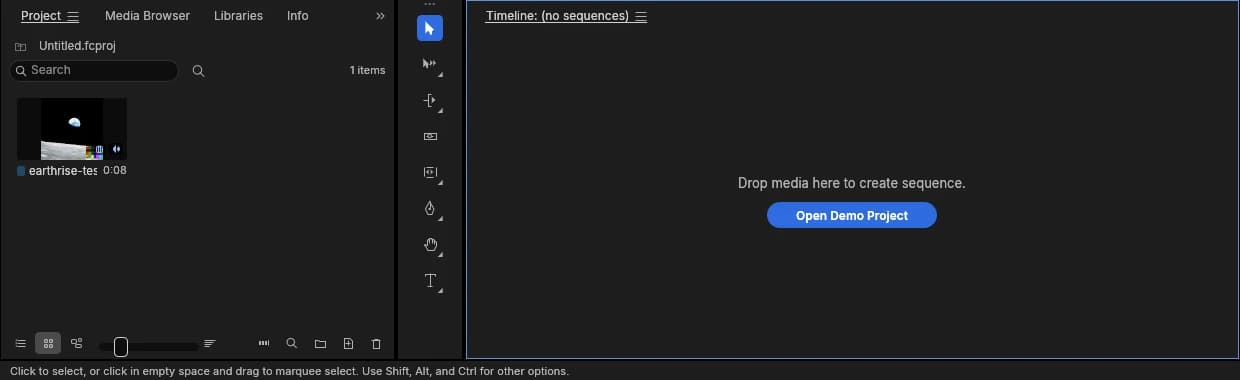
Drag a clip from your device into the Project area at the lower left. Check that a new media item appears and its filename matches the file you selected. The test input was earthrise-test-8s.mp4, an eight-second clip with video and audio.
Friday Works created the test input from NASA’s Earthrise still, adding a moving diagnostic pattern with a time counter and an audio test tone. This is test material, not NASA footage or customer work. Retain your original and use material you have permission to edit.
Step 2: create a sequence and split at two points
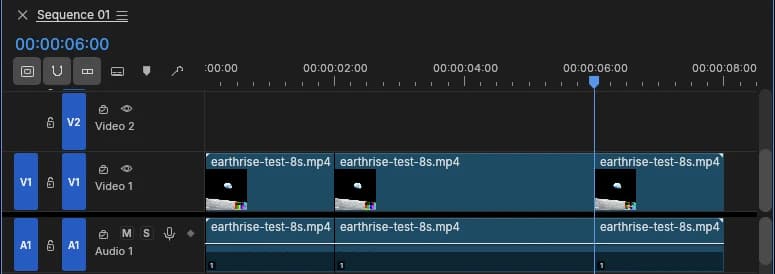
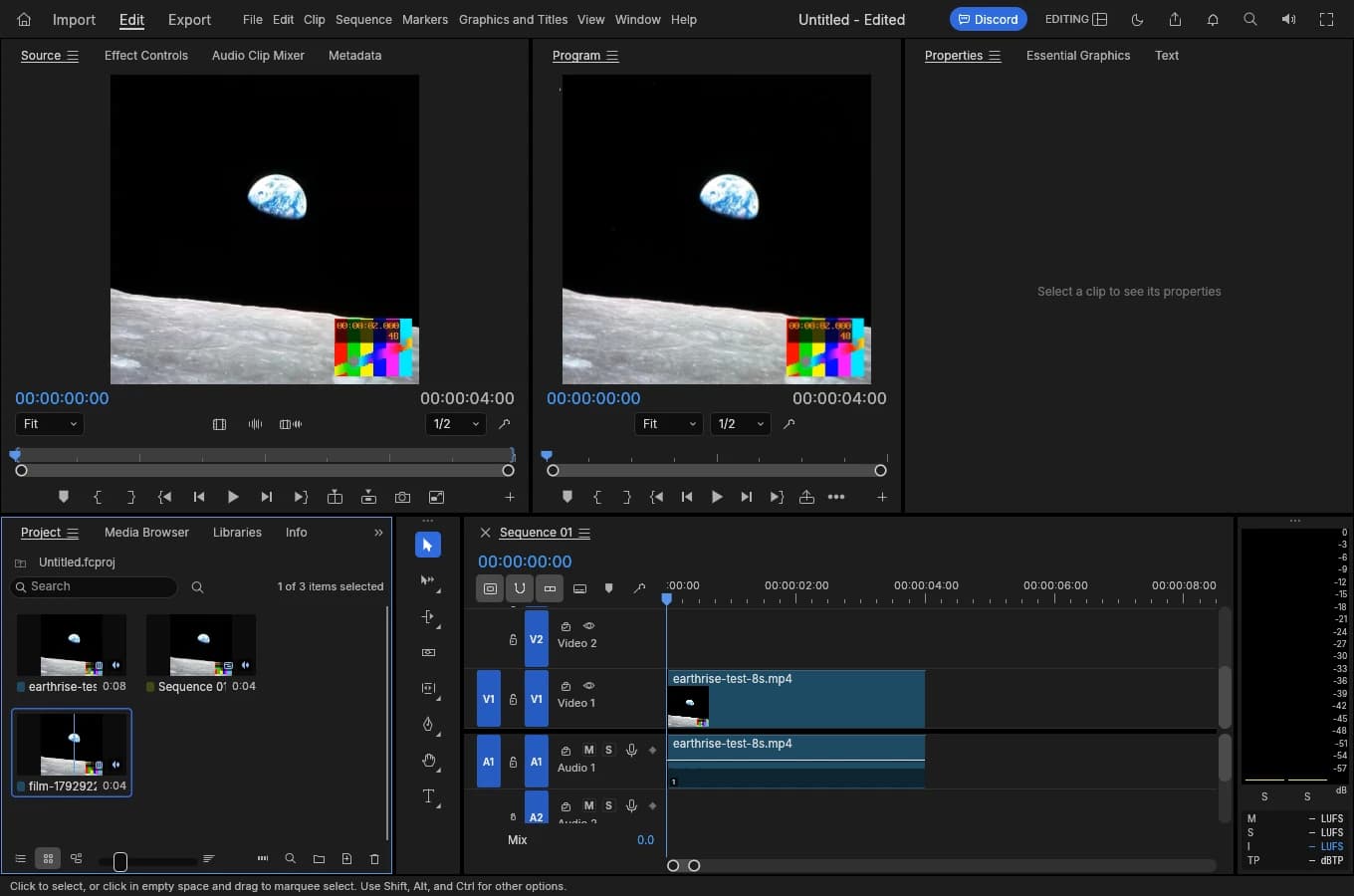
Drag the media item from Project into the empty timeline. The test created Sequence 01 with picture on V1 and sound on A1. A sequence is an arrangement of segments over time; this one initially displayed 00:00:08:00.
Double-click the blue time field at the upper left of the timeline, enter 00:00:02:00 and confirm with Enter. In this 24-fps sequence, the value means second two, frame zero. The four fields are hours, minutes, seconds and frames; the last field is not milliseconds.
Choose Sequence → Add Edit to All Tracks to split the tracks at the playhead. The tested menu displayed Ctrl+Shift+K, and that shortcut was also used during the cut. Set the time to 00:00:06:00 and invoke the same operation for the second split.
Make both splits before deleting a segment. In the sample, V1 and A1 then have three corresponding sections: 0–2, 2–6 and 6–8 seconds. Confirm that picture and sound are both split. If only one track changes, stop and inspect track selection and linking before deleting anything.
Step 3: remove the outside sections
Select the first 0–2-second section and check that the corresponding picture and audio sections are selected together. Press Shift+Delete. In the test, this removed the beginning and closed the gap, moving the remaining material to timeline zero and leaving six seconds.
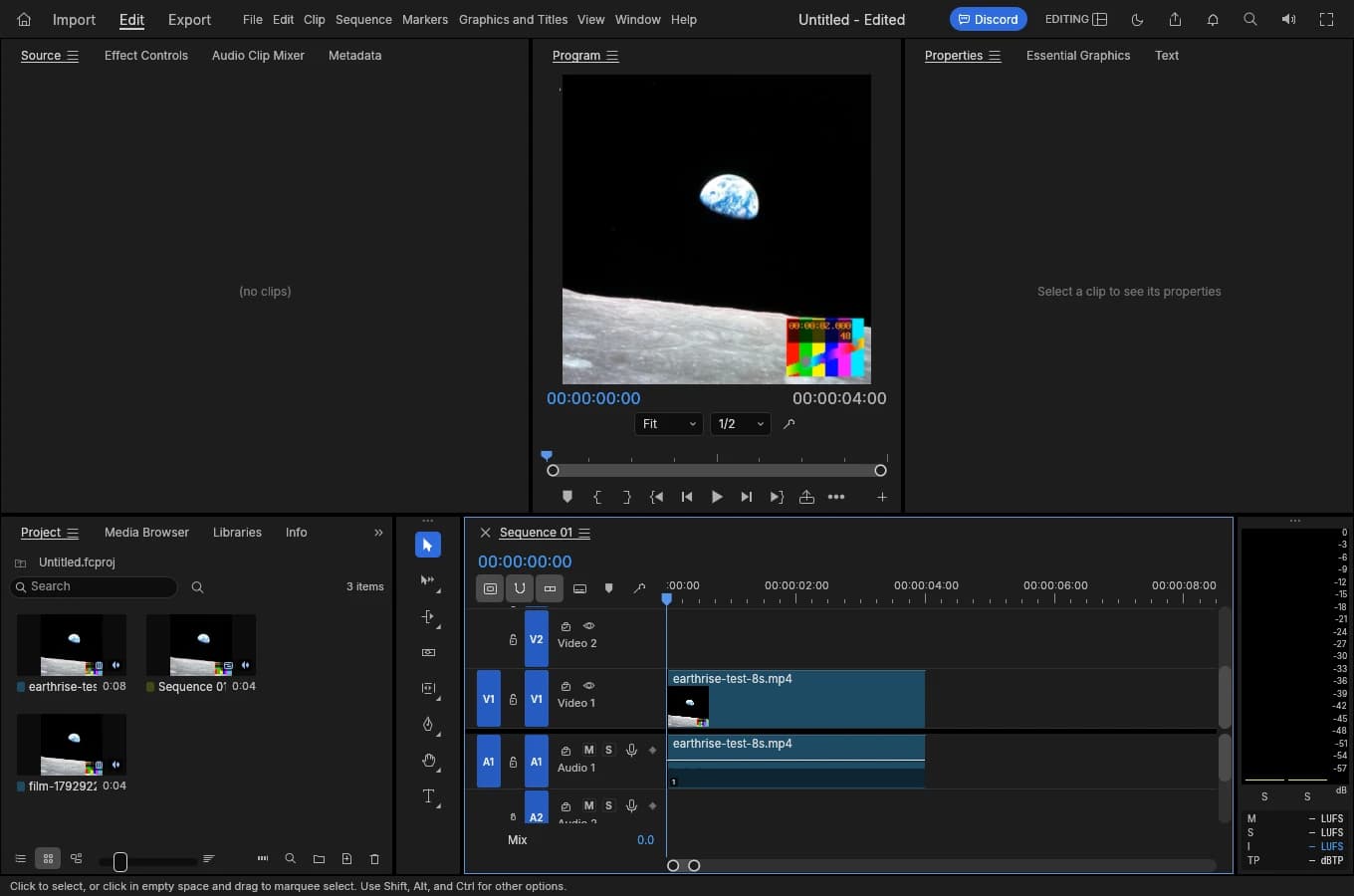
The original source’s 6–8-second tail now occupies seconds four through six on the shorter timeline. Select that last segment and press Delete. The retained source material is seconds two through six; the new sequence’s picture runs from zero to four seconds.
With the timeline focused, use Home to return to its beginning. Check Program and the total time. The test showed 00:00:00:00 at the start and 00:00:04:00 as the total, while the diagnostic clock inside the picture began at source second two.
A leading gap can produce black picture before the segment you want. Before exporting, check that the retained content starts at zero, no unwanted tail remains and picture and audio stay together. Timeline cuts do not delete the source file on your device.
Step 4: export H.264 with audio
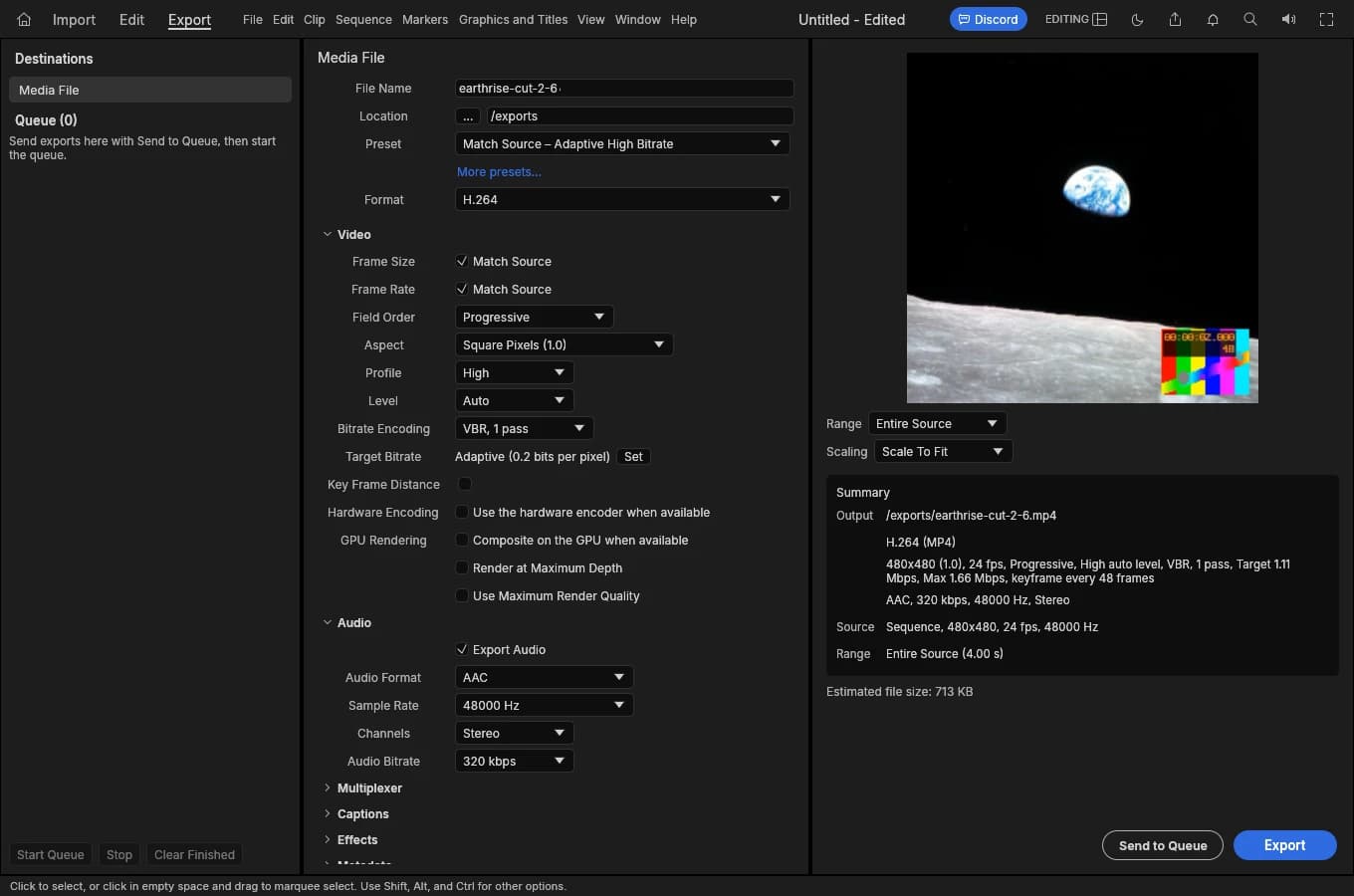
Choose the Export tab, use the Media File destination and enter an output name. The test used earthrise-cut-2-6, producing an .mp4 file. Use a distinguishable name instead of reusing the input filename.
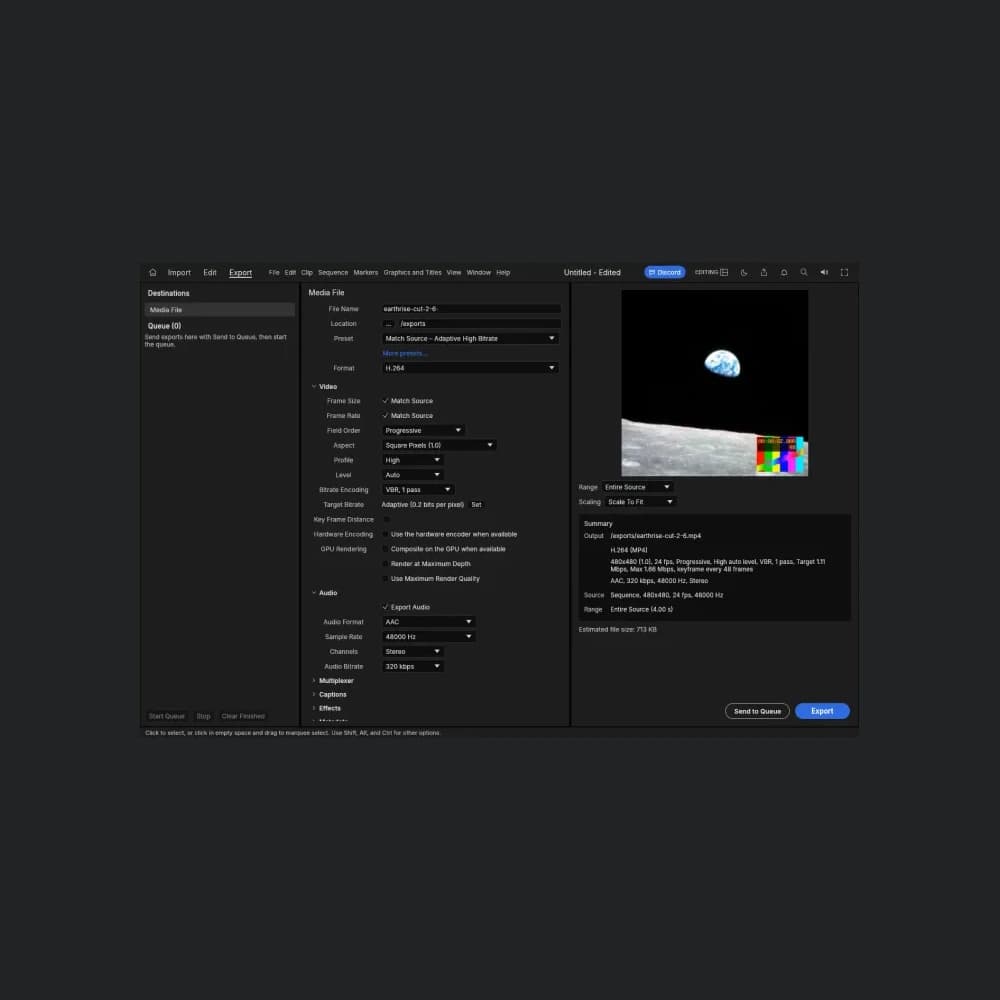
Set Format to H.264. For the sample, Frame Size and Frame Rate remained on Match Source, with Summary showing 480 × 480 and 24 fps. Range was Entire Source and Summary reported 4.00 s. Here Source means the edited sequence, not the entire eight-second input file.
Keep Export Audio enabled. The tested settings were AAC, 48000 Hz and Stereo, as pictured. Hardware Encoding and GPU Rendering were not enabled for this export. The article makes no speed claim or requirement to change those options.
Review the output name, format, duration and audio in Summary, then choose Export at the lower right. Wait for completion and the browser’s MP4 download. A progress indicator alone is not proof of success until you have located the output file.
Step 5: reopen the MP4 and verify the retained segment
Open the downloaded MP4 in a local player or browser. Inspect its beginning, end, picture and sound. Friday Works also reimported the output into FilmCraft and opened it in Source beside the sequence in Program.
An independent decoder reported 96 H.264 frames at 24 fps, which is 4.00 seconds of video. The MP4 container reported 4.01 seconds. Both measurements are retained here rather than treating the timeline display as the entire verification. Its two-channel AAC audio runs at 48 kHz and decodes successfully.
Comparing the first and last pictures with the source confirmed that the output starts at source second two and ends on the frame immediately before second six. The full file decoded and the download played in Chrome. These checks establish this short test, not every codec, long video or computer.
For spoken material, watch and listen around the cuts to check synchronization. The test tone here does not evaluate dialogue, Vietnamese speech or mixing quality. If your result has a black lead-in, missing audio or an unwanted tail, inspect the timeline and Export settings before using the file.
Try your clip and keep the original
FilmCraft is in alpha. Start with a short clip on your actual machine, complete the workflow and reopen the MP4 before taking on deadline-sensitive work. This test uses the desktop web build and does not establish equivalent phone or high-resolution-footage behavior.
Every cover and body image shows the running FilmCraft 0.12.0 build. The test clip combines the public-domain Earthrise still with a diagnostic pattern created by Friday Works; it is not customer work or live-action footage. UI permissions, image sources and crops are documented below.
FAQ
Frequently asked questions
Does trimming in FilmCraft delete the original file?
The test split and removed sequence segments, then exported a new MP4. The eight-second input was retained for comparison. Keep your original and use a distinct output filename.
Why does four seconds of video show as 4.01 seconds in MP4 metadata?
The test contains 96 frames at 24 fps, or 4.00 seconds of video, while the container reader reports 4.01 seconds. Check frame count, retained starting and ending content and audio alongside the displayed duration.
References
Sources used in this guide
We prioritise official guidance and primary technical sources. Visit each source for full context and the latest updates.
- FilmCraft 0.12.0: official release used for the tested browser cut and exportArtCraft Team and FilmCraft contributors ↗︎
- FilmCraft browser documentation at the tested tag: file handling, drag/drop and stepped exportArtCraft Team and FilmCraft contributors ↗︎
- FilmCraft 0.12.0 documentation: timeline editing, export and alpha statusArtCraft Team and FilmCraft contributors ↗︎
- Friday Works web hosting: unmodified official builds and version/checksum manifestFriday Works ↗︎
- Original Friday Works screenshots, 2026-10-25: real 0.12.0 import, two cuts, retained four-second sequence, H.264/AAC export and reimported download. Own eight-second diagnostic clip; NASA still plus generated timing pattern and test tone, not customer footage. Body crops focus actual Project/timeline; cover proportionally reduces the 1360×900 Export screen to 719×476 in a 1000×1000 dark frame; no UI/data editsFriday Works / ArtCraft Team and contributors ↗︎
- UI reuse permission: MIT License, copyright © 2026 ArtCraft Team and FilmCraft contributors; full permission notice and separate asset noticesArtCraft Team and FilmCraft contributors ↗︎
- Earthrise still in the own test clip: William Anders/Apollo 8/NASA, 1968-12-24; resized with added diagnostic overlay for testing, not NASA video footage or endorsementNASA / William Anders; test clip by Friday Works ↗︎
- NASA media use guidance: public-domain US-government work, attribution and no endorsementNASA ↗︎