

ContentsTap to jump to a section+
- Tested PhotoCraft 0.15.1: a 1,000 × 1,000 JPEG became a 600 × 600-pixel PNG.
- Use Image → Image Size…, retain proportions and enable Resample.
- Use File → Export → Quick Export as PNG, then reopen the actual download.
The target: a real 600 × 600-pixel PNG
Need a smaller picture for a website slot or to send to someone? In PhotoCraft, open the image, change its pixel dimensions in Image Size, apply the change and export a file. A smaller-looking picture on screen is not enough: check the downloaded output itself.
Friday Works tested the complete workflow in PhotoCraft 0.15.1 using desktop Chrome on October 25, 2026. A 1,000 × 1,000 JPEG was resized to 600 × 600, exported as PNG and reopened. An independent image decoder confirmed that the PNG was readable and had exactly those dimensions.
PhotoCraft is developed by the ArtCraft team; Friday Works hosts the official web build. The screenshots show the version used in this test. Open the tool below and work with a copy of your own picture.
Step 1: open a picture and choose the target dimensions
Open the PhotoCraft page, wait for the application to load and choose Open…. Select an existing JPEG on your device. Keep the original separate from your output so you can distinguish the starting picture from the edited copy.
The sample measured 1,000 × 1,000 pixels. The target was 600 × 600, retaining its square proportions. For a rectangular picture, choose the required width and retain proportions so the height follows. Avoid entering unrelated width and height values if you want to preserve the subject’s shape.
The 600-pixel target belongs to this example; it is not a universal website standard. Check the receiving page or recipient’s requirements before changing a work file. This test covers downsizing one image, not enlargement or batch processing.
Step 2: change the pixel dimensions in Image Size
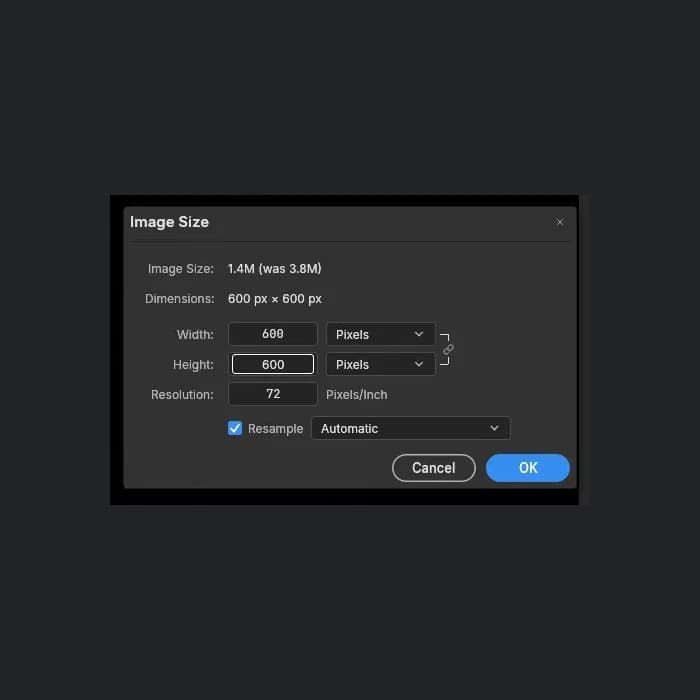
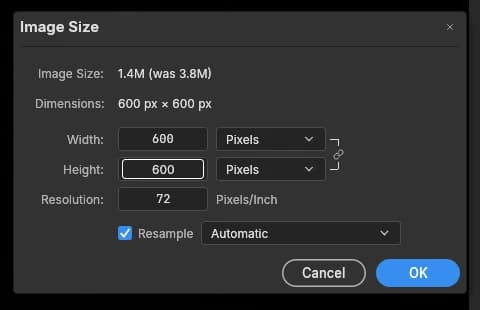
Choose Image → Image Size…. Check that the units beside Width and Height are Pixels. The Dimensions line above them shows the size that will be applied.
Keep the proportion link between Width and Height active. In the test, entering 600 for Width and moving to the next field changed Height from 1,000 to 600 automatically. Review both fields before confirming; a rectangular image will usually have different width and height values.
Enable Resample and retain Automatic, as shown in the screenshot. Resampling allows the pixel count to change. The test left Resolution at 72 Pixels/Inch: the acceptance criterion was the pixel width and height, not a change to Resolution alone.
Choose OK. PhotoCraft then shows a 600 × 600-pixel document. A viewing percentage such as 74.2% or 100% describes the on-screen zoom. Read the document dimensions rather than judging output size from how large the picture looks.
Step 3: use Quick Export as PNG
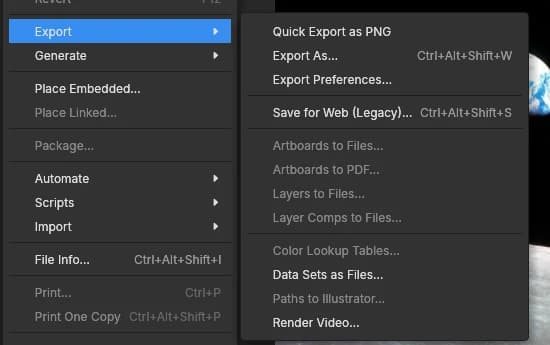
Choose File → Export → Quick Export as PNG. This is the export path used for the test, not merely a menu item observed on screen. Wait for the browser download to finish before closing the page.
The application suggested earthrise-nasa-input.png for the sample. Depending on browser settings, the file may go to Downloads or prompt for a location. Identify the new PNG and rename the downloaded copy if that helps distinguish it from the original JPEG.
Resizing the document and exporting it are separate operations. Choosing OK in Image Size does not by itself establish that an output file has been saved. Exporting before applying the new dimensions can leave you with an output at the old size.
This guide uses PNG for a specific, tested output path. Fewer pixels do not guarantee fewer bytes in every case, particularly when switching between JPEG and PNG. If you need to meet a file-size limit, check the actual downloaded file size as well.
Step 4: reopen the PNG and check the result
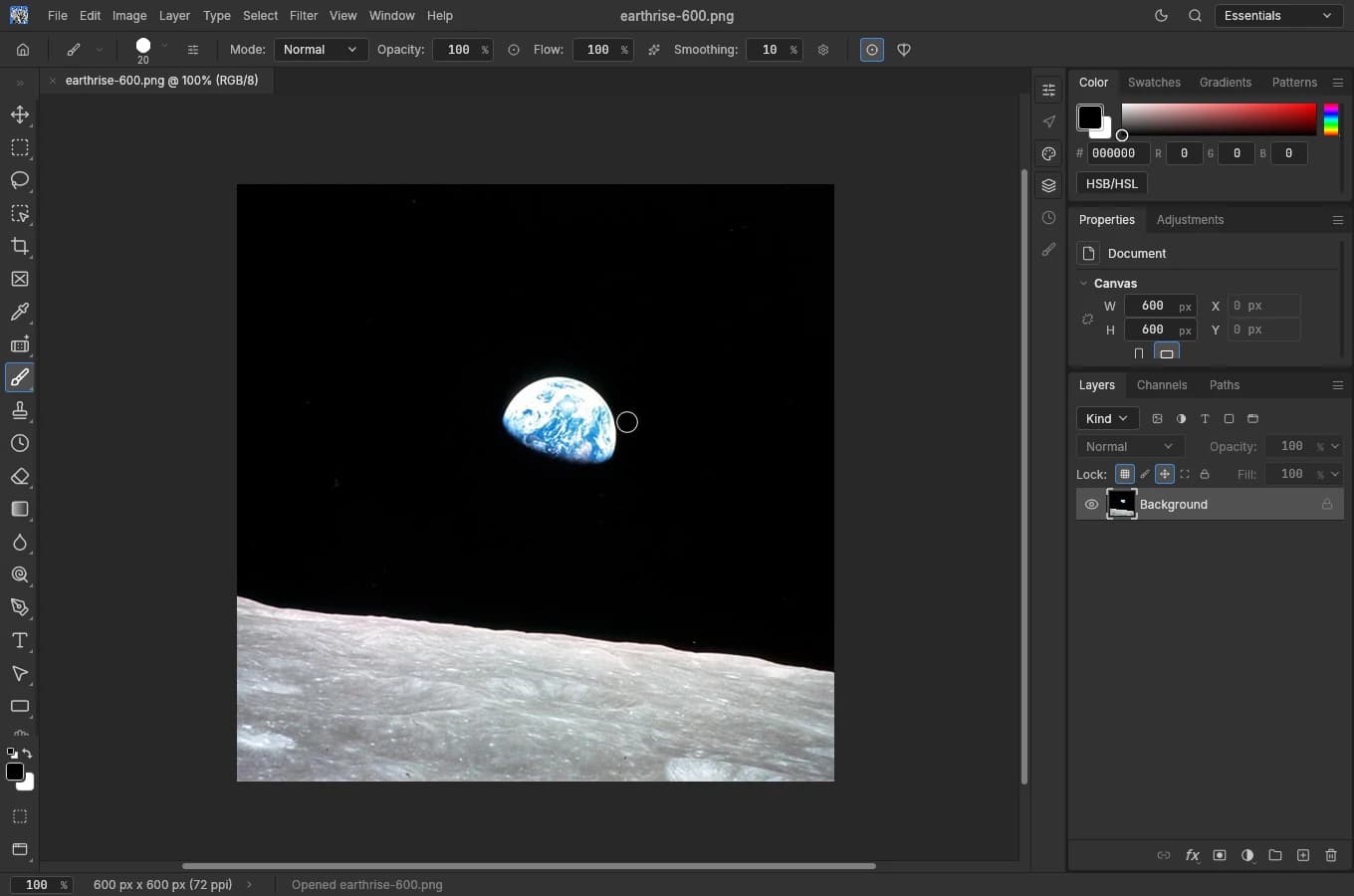
Choose File → Open… and select the PNG you just downloaded. Friday Works retained the original download and made a byte-identical copy named earthrise-600.png for a clearer screenshot. The new document tab and Properties panel show a 600 × 600-pixel image.
An independent PNG decoder also checked the file. It reported 600 pixels in width and height and decoded the image successfully. These checks use the file downloaded from PhotoCraft, not a replacement image created in another editor.
For your own output, check the filename, both dimensions, the complete subject and its proportions. If the old dimensions remain, return to Image Size, check Pixels and Resample, apply OK and export to a clearly distinguishable file.
Keep both the original and output until the recipient confirms the result is usable. This test establishes one square JPEG-to-PNG workflow; it does not establish identical behavior for every format, layered PSD or very large image.
Apply the workflow to your own picture
The tested path is Open… → Image Size… → OK → Quick Export as PNG → reopen the file. PhotoCraft is still in early development, so start small and inspect the output before handling deadline-sensitive material. This test used a desktop computer and does not confirm an equivalent phone workflow.
The Earthrise sample by William Anders/Apollo 8/NASA is public-domain material in the United States, not customer data or an endorsement by NASA. The cover shows the actual Image Size dialog with dark margins to preserve its controls in different layouts. Sources and licenses appear below.
FAQ
Frequently asked questions
Why can a picture look smaller while the downloaded file stays large?
Zoom changes only the view. Check Width and Height in Pixels in Image Size, enable Resample, apply OK and export again. File size in bytes also depends on format and image content.
How was the PhotoCraft result verified?
Friday Works downloaded the actual PNG from PhotoCraft 0.15.1, reopened it in the application and decoded it independently. The 1,000 × 1,000 JPEG produced a 600 × 600-pixel PNG.
References
Sources used in this guide
We prioritise official guidance and primary technical sources. Visit each source for full context and the latest updates.
- PhotoCraft 0.15.1: official release used for the real browser workflowArtCraft Team and PhotoCraft contributors ↗︎
- PhotoCraft documentation at the tested tag: image editing, export and early-alpha statusArtCraft Team and PhotoCraft contributors ↗︎
- Official unmodified web builds hosted by Friday Works: version and checksum manifestFriday Works ↗︎
- Original screenshots by Friday Works, 2026-10-25: actual 0.15.1 Image Size 600×600, File/Export menu and reopened downloaded PNG. Cropped dialog/menu; cover keeps native 480×310 dialog inside 700×700 neutral frame, no upscaling; full workspace resized proportionally. No UI labels, values or output fabricatedFriday Works / ArtCraft Team and contributors ↗︎
- UI permission: MIT License, copyright © 2026 ArtCraft Team and PhotoCraft contributors; full permission notice. Bundled assets retain their own licensesArtCraft Team and PhotoCraft contributors ↗︎
- Input image Earthrise: William Anders/Apollo 8/NASA, 1968-12-24; NASA-provided square JPEG opened locally. Resized and converted to PNG by PhotoCraft in this test, not customer imageryNASA / William Anders ↗︎
- NASA media use: public-domain US-government material, third-party exceptions, credit and no endorsementNASA ↗︎